To ask for Google reviews on a TV, invite an honest account of the customer’s experience, use the correct Business Profile review destination, and let people respond at their own pace. Do not offer a reward or ask only the people you expect to leave a positive review.
A useful screen makes the option visible. Staff should not stand over the customer, require a review before they leave, or tell them which rating or words to use.
Use Google’s current review rules
Google’s review guidance permits inviting customers through a link or QR code, while prohibiting incentives such as free or discounted goods or services in exchange for reviews. That applies to requests for an honest review too, not only requests for a positive one.
Its content policy also prohibits selective positive-review solicitation and says businesses should not pressure people to review while on the premises or request particular content. Keep the invitation neutral and optional.
Do not use a message that sends happy customers to Google while routing everyone else away from the review option. You can offer a normal way to contact the business about a concern without making access to the review link depend on a satisfaction answer.
Write a calm, direct invitation
Choose wording that welcomes genuine feedback rather than a particular score. These fictional screen-copy directions can be adapted to your business:
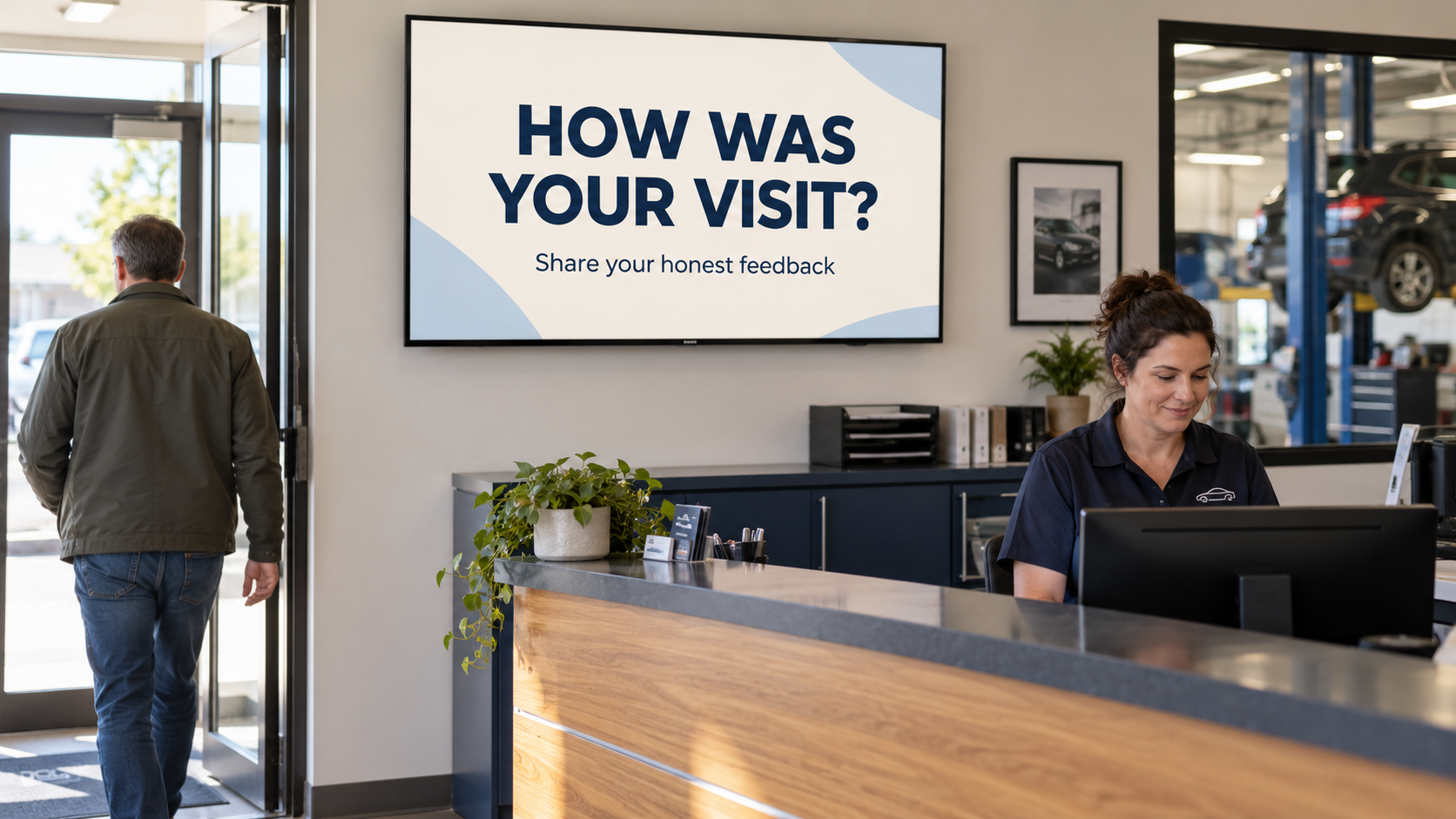
HOW WAS YOUR VISIT?
Share an honest review when you have time.
YOUR FEEDBACK IS WELCOME
Leave an honest review on Google.
Keep the destination clear beside the code. Follow Google’s current brand guidance when referring to reviews on Google, including the use of official brand assets where required. Do not ask AI to invent a Google badge or a five-star graphic.
| Useful approach | Approach to avoid |
|---|---|
| Invite customers to describe their genuine experience. | Tell them to leave five stars or mention a named employee. |
| Make the same neutral invitation available without screening for positivity. | Offer the Google link only after someone gives a high satisfaction score. |
| Let the customer choose whether and when to respond. | Require a review while an employee watches or before a service is completed. |
| Keep the request free of rewards. | Offer a discount, free item, prize entry, or another benefit in exchange for the review. |
Get the destination from the correct Business Profile
Use Google’s instructions for creating a review link or QR code. In the current computer-browser workflow, Google directs profile managers to Read Reviews, then Get more reviews, where they can copy the link or save the provided QR image.
Check the business name and location before using it. A company with several branches can accidentally put one location’s review link on another location’s TV. Keep the verified link and the intended display or location in your content record.
Pair and Play displays your approved screen. The review destination comes from Google’s Business Profile tools; do not imply a special review integration or automatic review collection if you are simply showing a link.
Test the destination on a phone
Open the link before creating the screen. Confirm that it leads to the intended business and review action. Google says customers need to be signed into a Google Account to leave a review, so the path may include an account sign-in step.
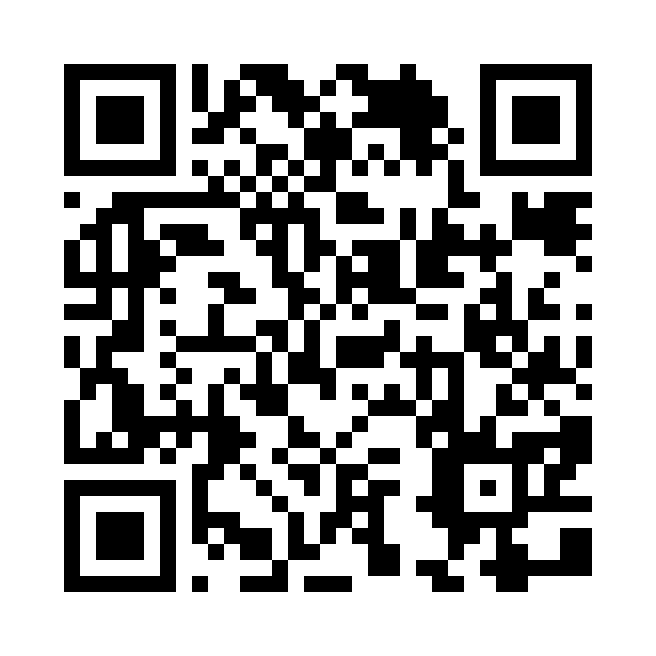
Use the demonstration code below to see how a clearly labeled code can identify its destination. It opens Google’s official instructions, not a review form for Pair and Play or another business. Your real request should use your own verified review destination.
Keep the QR code intact in the design
Use the actual generated code image and leave its clear border visible. Do not replace it with a decorative AI approximation, stretch it, or place busy artwork behind it. Put a short instruction beside it so the customer knows what will open.
If using Pair and Play’s Screen Maker for the surrounding design, a description, photo, logo, or exact wording can start the screen; each is optional. Review the wording and any brand elements before approving the artwork. Verify the final code itself after the design is assembled.
The TV QR-code guide explains practical placement and testing. A code that works on your laptop still needs a check from the real TV.
Check the screen in the room
Scan the finished screen from the normal customer position using a phone. Check glare, code size, contrast, viewing angle, and whether the screen changes before someone can scan. Confirm the destination again from that scan.
Keep the invitation visible without creating pressure. A checkout or exit-area reminder can let customers choose to respond later. Staff should know that a review is optional and that no benefit depends on providing one.
Confirm the business and active playlist before placing the screen into playback. Recheck the link when a location or Business Profile changes. If you later want to display an existing review, that is a separate permission and quotation task covered in turning customer reviews into TV screens.
Start My 14-Day Screen Test with one neutral invitation and a verified destination. Review the request for clarity and ease of use, while keeping every customer free to share their own experience.