You probably do not need to buy a commercial digital-signage display to begin communicating better with people already inside your business. The useful question is simpler: can the TV, tablet, or connected device in the room become a reliable screen for the messages customers should see before they leave?
Start with the customer moment, not the equipment
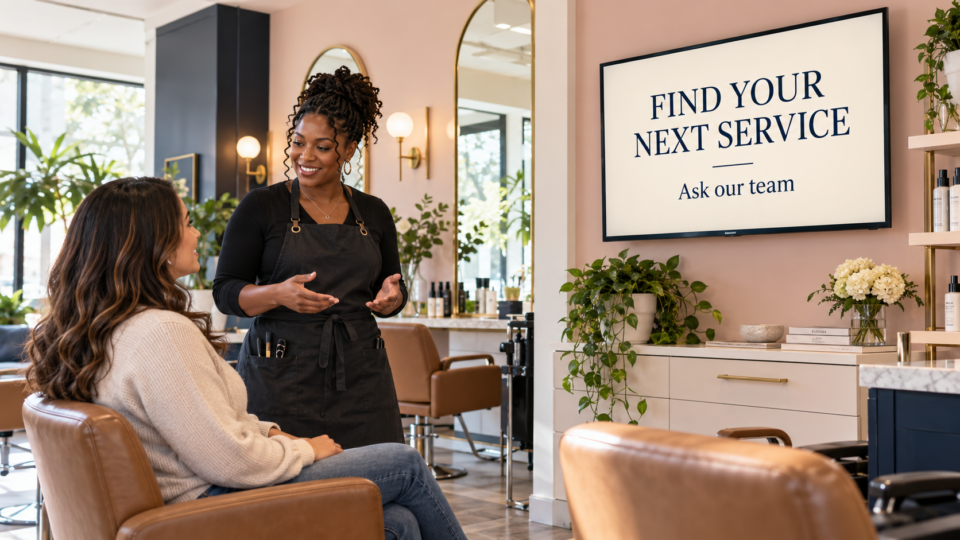
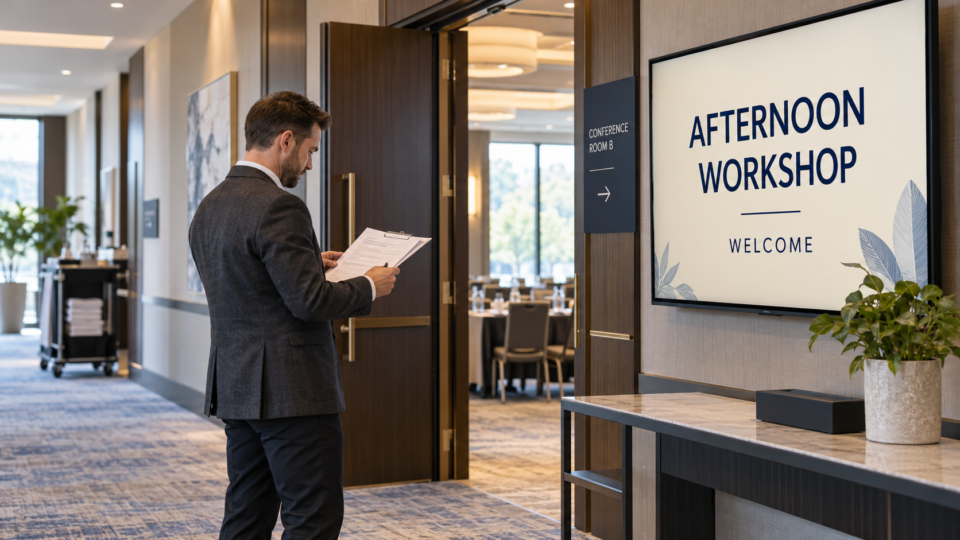
Look at the room first. Is the screen near check-in, a waiting area, a counter, or a checkout line? Write down the questions customers ask there, the services they overlook, and the next step they often need. That tells you what content belongs on the screen before you choose how to play it.
A simple path from existing TV to customer communication screen
1. Check the screen and connection
Confirm that the TV has a safe location, power, stable Wi-Fi, and either a compatible browser or an available HDMI port for a supported streaming device. Do not assume every smart-TV browser behaves the same way.
2. Choose the most predictable playback option
Pair and Play currently recommends Google TV for the simplest, most predictable setup. Compatible TV and tablet browsers may work, and a compatible Fire TV can also be used. The current setup guide is the best place to check the options before you buy anything.
3. Define the screen’s job
A dental office might use it to explain first visits and service questions. A restaurant might use it for signature dishes, events, and return visits. An auto shop might use it to explain maintenance conversations. One room can have more than one message, but the messages should fit the moment.
4. Build a short first playlist
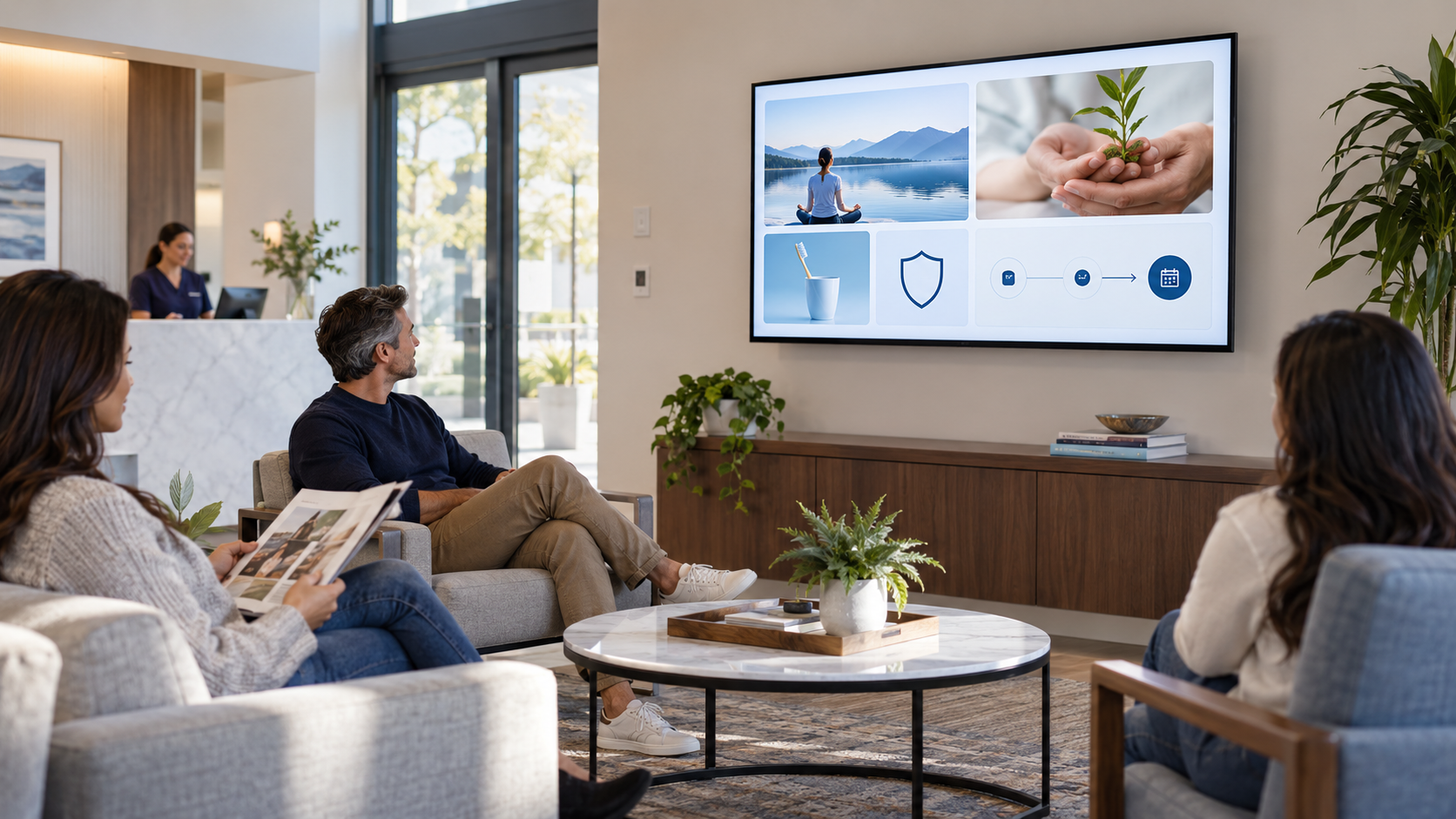
Start with five or six screens: a welcome, one useful explanation, one service or product discovery message, one trust message, and one next step. Keep each screen readable from where customers actually sit.
5. Pair, play, and watch the room
Pair your display using the code from your dashboard, then observe what happens. Do customers ask clearer questions? Does the front desk refer to the screen? Does one message feel outdated or hard to read? Use that information to improve the rotation.
6. Maintain the content
Check dates, prices, QR destinations, seasonal messages, and service names regularly. A screen earns trust when it stays current; it loses trust when an old offer is still playing weeks later.
What to avoid
- Do not treat the TV like an endlessly looping brochure.
- Do not fill one screen with several competing actions.
- Do not show unreadable text or unverified claims.
- Do not rely on a setup you have not tested in the actual room.
For content planning, see What Should I Put on a Waiting Room TV?. For the larger customer-attention concept, read What Is a SILENT SALES SCREEN™?.
Start with the screen you have
Pair and Play is built to help businesses turn compatible TVs and tablets into customer-facing screens with a job: educate, promote, build trust, and invite a useful next step.
Start at $0 today with two included screens. Review the current setup guide before choosing a device.