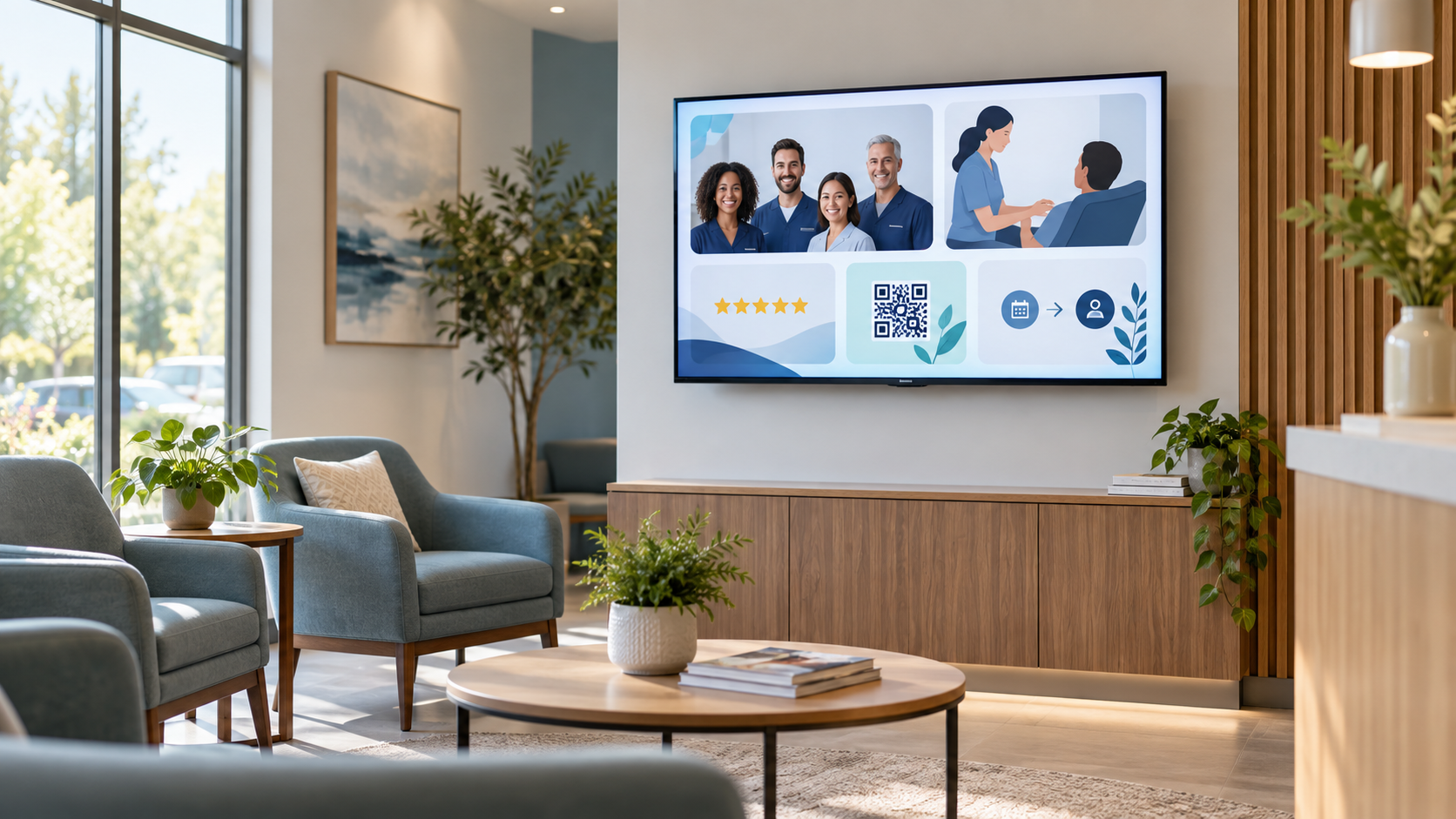
A waiting room TV should do more than fill silence. It should help people understand your business, feel more confident about your team, discover useful services, and know what to do next.
The best waiting room TV ideas are simple, useful, and easy to act on. You do not need to turn your screen into a nonstop advertisement. A thoughtful mix of education, service discovery, trust-building, and timely information can make the room feel more helpful while your business stays top of mind.
Start with four jobs your screen can do
Before choosing individual slides, decide what you want the screen to accomplish. A strong waiting room playlist usually balances four jobs:
- Educate: Answer common questions and explain what customers may not know.
- Promote: Introduce services, packages, products, or options that deserve attention.
- Build trust: Put a face to your team and show people what they can expect.
- Invite action: Give visitors one clear next step, such as scanning a QR code, asking a question, or booking.
With that mix in mind, here are 25 useful things to show on a waiting room TV.
25 useful waiting room TV ideas
Education and helpful information
- Answers to common questions. Turn the questions your team hears every day into short, readable slides. Examples include “How long does this service take?” or “What should I bring to my appointment?”
- Short how-it-works explainers. Break an unfamiliar service into three or four simple steps. A quick explanation can make a new option feel much easier to understand.
- What to expect next. Walk visitors through the next part of their experience: check-in, consultation, service, pickup, follow-up, or payment. Clear expectations make the room feel more organized.
- Preparation and care tips. Share general tips that help people prepare for or maintain a service. Keep the advice broad, current, and approved by your team, especially in healthcare settings.
- Seasonal education. Use the time of year to make your content more relevant. A veterinary clinic might explain seasonal pet care, while a dental office might share a timely reminder about routine visits.
Services and discovery
- Services customers may not know you offer. Many businesses provide more than people realize. Give lesser-known services their own slide with a plain-language explanation and a clear way to learn more.
- Packages and memberships. If you offer memberships, bundles, or recurring plans, explain what is included and who they are for. Avoid cramming every term onto one slide; direct visitors to your team or a linked page for details.
- Add-ons and upgrades. Show useful complementary options at the moment customers are already thinking about your business. Make the benefit clear without making the screen feel pushy.
- Payment or financing options. If your business offers payment plans, financing, or cash-pay options, use a simple overview and direct people to ask your team for current terms. Verify every detail before it goes on screen.
- New products or services. A waiting room is a natural place to introduce something new. Explain what it is, why someone might consider it, and what the next step is.
Trust and familiarity
- Meet the team. A name, role, and friendly photo can make a business feel more personal. Keep each profile short and use real team information.
- Real customer reviews. Share genuine reviews that your business is allowed to use. Keep the wording accurate, identify the source when appropriate, and never create testimonials or imply results you cannot support.
- Your process or standards. Explain what your team pays attention to: cleanliness, communication, preparation, follow-up, quality checks, or another real part of the experience.
- Community involvement. Highlight a real local partnership, event, charity effort, or community connection. This works best when it feels like a welcome window into the business, not a self-congratulatory announcement.
- A welcome and orientation slide. Tell visitors they are in the right place. Include a friendly welcome, basic check-in guidance, and who to ask if they need help.
Clear next steps
- A QR code for booking or requests. Give people a way to book, request an appointment, join a waitlist, or contact your team from their phone. Put the action next to a short instruction such as “Scan to choose a time.”
- A QR code for your service or menu page. If the full list of services, products, or menu items is too long for the screen, use the TV to introduce the categories and let the QR code carry the details.
- A way to follow or stay connected. Invite visitors to follow a social profile, join an email list, or save your business for later. Use one channel and one action per slide.
- Gift cards and loyalty options. Show how someone can purchase a gift card, earn rewards, or send a friend your way. Include the current terms and an easy next step.
- Events and announcements. Promote an upcoming class, open house, community event, seasonal offer, or important deadline. Put the date in large type and remove the slide when it is no longer current.
Useful room content
- Hours and contact information. Show the information people are most likely to need later. Include the website, phone number, hours, and location without making visitors search for it.
- Directions and wayfinding. Help people find the front desk, a restroom, another office, pickup area, or parking entrance. A simple diagram can be more useful than a paragraph.
- Local weather or a timely community note. A brief local update can make the room feel current, as long as it supports the experience and does not compete with your most important messages.
- Calm, short visual content. Use attractive, quiet visuals that fit your brand: a product detail, a space tour, a nature scene, or a short behind-the-scenes moment. Keep it intentional rather than adding random filler.
- Rotating seasonal announcements. Refresh a small number of slides for holidays, schedule changes, seasonal services, or current promotions. A screen feels more useful when people can tell that someone is maintaining it.
How to choose your first 10 slides
You do not need all 25 ideas on day one. Start with a balanced ten-slide playlist:
- Three education slides
- Three service or product discovery slides
- Two trust-building slides
- One clear action slide with a QR code or contact step
- One timely or seasonal slide
Watch what people ask about, what your team ends up explaining repeatedly, and which calls to action visitors actually use. Then improve the playlist. Your first version only needs to be useful enough to learn from.
What makes a waiting room screen work?
Good content can still disappear into the background if it is difficult to read. Keep each slide focused on one idea. Use large type, strong contrast, short sentences, and real images that support the message. Give people enough time to read before changing slides.
Plain language matters even more when visitors are tired, distracted, or unfamiliar with your services. The U.S. Department of Health and Human Services plain-writing guidance recommends clear, direct communication, and the CDC plain-language guidance offers practical ways to make health information easier to understand. Those same principles help almost any customer-facing screen: lead with the point, use familiar words, and remove information people do not need right now.
For healthcare and other privacy-sensitive businesses, keep public-screen content general and non-personal. Do not show names, appointment details, private messages, or individualized advice. Have your team review claims and current terms before they become part of a playlist.
Make the TV part of the customer experience
A waiting room TV works best when it is treated as a customer communication channel, not as decoration. It can answer a question before someone asks, introduce a service while they are already thinking about your business, and make the next step easier to take.
If you already have a TV, you can start there. Pair and Play helps businesses turn customer-facing TVs and tablets into SILENT SALES SCREEN™ displays for education, promotions, trust-building, and action. You can manage your content from a browser or phone, organize playlists, and keep the screen working while you focus on the people in the room.
When you are ready, see how to connect a screen or start your 14-day free trial.
Start My 14-Day Screen Test
Try it in the room that matters with $0 today, two screens included, $79/month after trial, and cancel anytime.