To switch TV content between events reliably, prepare the next event’s approved content before turnover starts. Identify the displays involved, the playlist each should use, the changeover time, and the person who will check the actual TVs.
The avoidable mistake is leaving the previous event’s welcome, sponsor, agenda, or QR code in front of a new audience. Treat screen content as part of the room handover, alongside signage and furniture.
Prepare Event B while Event A is still organized
Keep the two events clearly separated in your content records. Use names that staff can distinguish quickly, including the date and room when needed. A generic filename such as “final welcome” is difficult to trust during a busy handover.
Get the next event’s artwork approved in advance. Confirm the event name, host logo, room, date, arrival instruction, and any schedule shown. Keep the approved version identifiable so staff do not accidentally select an earlier draft.
If a common venue playlist is used by several TVs, check the effect of changing it. A screen in a room still serving Event A may need different content from the entrance now welcoming Event B. Do not assume one change should reach the whole building.
Make a short A-to-B handover plan
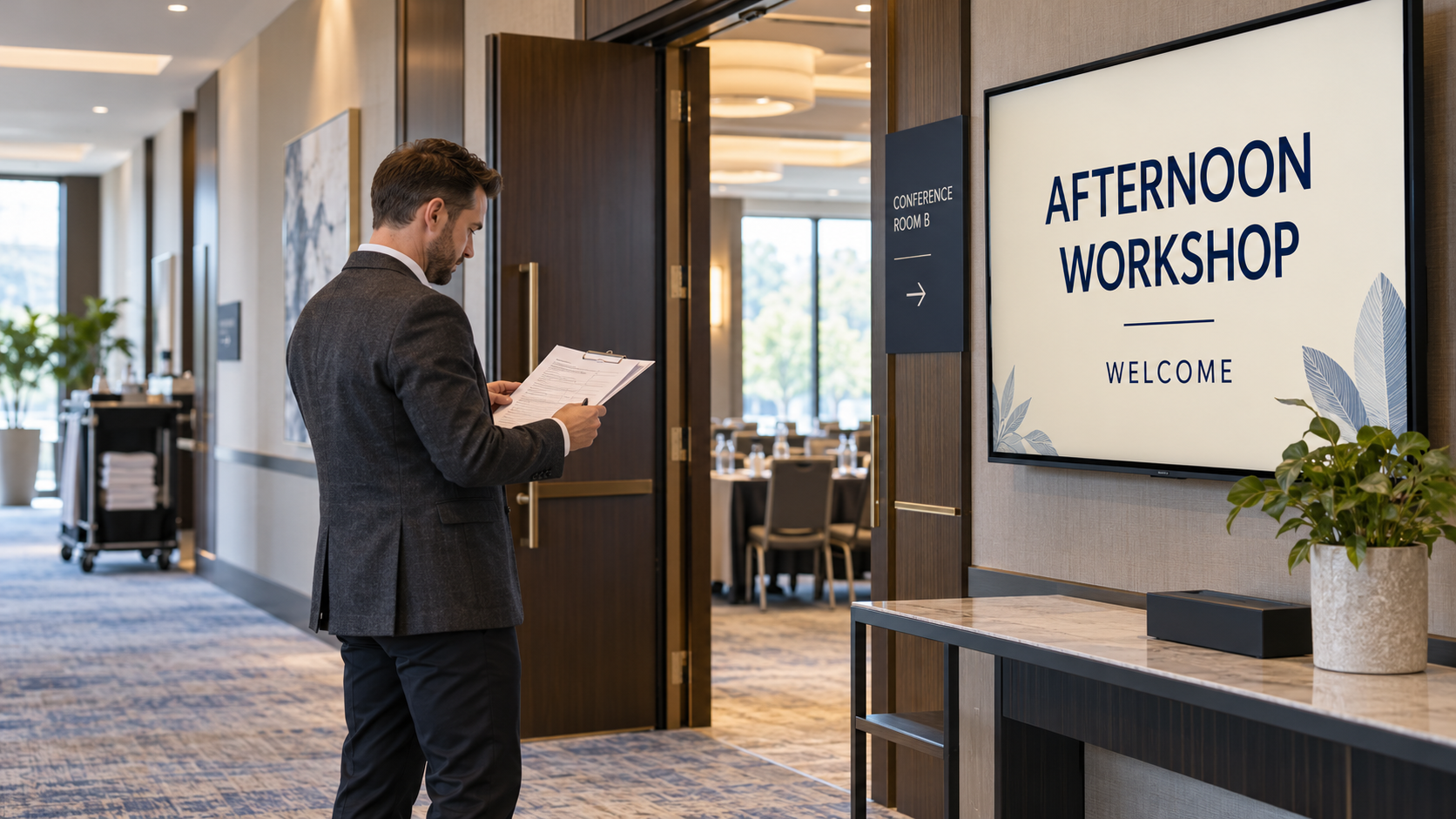
In this fictional example, a morning briefing ends at noon and an afternoon workshop opens at 1:00 p.m. The exact timing belongs to the venue’s real operating plan.
| Stage | Responsibility | What to confirm |
|---|---|---|
| Before the morning event ends | Content manager | The afternoon welcome and information are approved and ready. |
| When the room is released | Turnover lead | Event A no longer needs the affected displays. |
| During reset | Screen manager | The correct afternoon playlist is selected for each relevant TV. |
| Before afternoon arrivals | Local room checker | The TV shows Event B, with no Event A content appearing through the rotation. |
| After the check | Turnover lead | The handover is recorded and someone owns any late correction. |
Write dates and times in the venue’s local time and verify the timezone used by any scheduling controls. A manager working remotely should not assume their phone’s current timezone is the event’s timezone.
Keep neutral fallback content ready
Prepare an approved venue welcome that contains no event-specific names, dates, sponsors, or private information. It can give the team a suitable alternative if the next event’s artwork is delayed or a late detail needs correction.
Use the fallback only when it is appropriate for the audience in front of that display. A room still occupied by the first event should not switch prematurely just because the reception area is ready for the next group.
Do not improvise an unapproved event message during the busiest part of turnover. A neutral welcome is easier to manage than a rushed design containing the wrong name.
Make the playlist change deliberately
In the management app or browser dashboard, confirm the business, location, active playlist, and display assignment. Select the prepared event playlist where that is your workflow, or replace the relevant event items in the assigned playlist if that is how your operation is organized.
Review the whole rotation. A correct first welcome does not mean an old sponsor or QR code is absent later in the loop. Check images, videos, agenda items, and any shared content that may still refer to Event A.
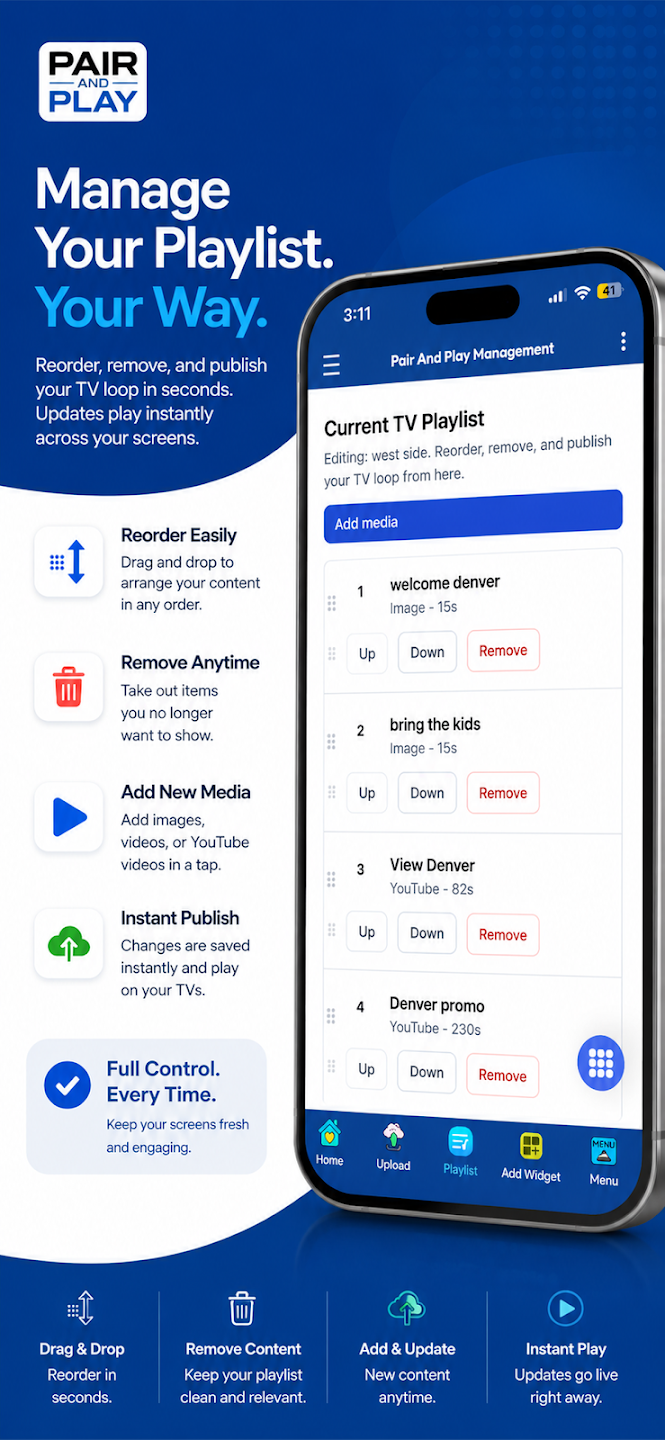
Use the current save or publish action for the change, then verify the intended display. Keep removal from playback distinct from deleting an asset from the media library. You may need the approved artwork for records or a future event, while it should no longer appear in this rotation.
Check every affected TV before the next audience arrives
Have someone in the venue inspect each display. Confirm the room, TV input or player, expected welcome, readable names, and correct date or time. Watch long enough to check the relevant rotation rather than taking one photograph of the first screen.
For a remotely managed update, agree on a simple confirmation: which TV was checked, what appeared, and when. A saved dashboard change or uploaded file does not by itself establish what is currently visible in the room.
If the old content remains, check the selected playlist and assignment first, then the player and connection. Use the current setup guide for the supported device. Keep the fallback plan available while the issue is resolved.
Give late changes one route
Decide who may approve a last-minute room change, corrected name, or revised start time. Have the screen manager confirm the requested facts with that person, update the approved artwork, and repeat the TV check.
If the design needs to be remade in Screen Maker, a description, photo, logo, or exact wording can be the starting input; each is optional. Check the selected business and playlist before using Approve and add to playlist. A new design should not be added to the morning event’s rotation by accident.
The corporate welcome guide covers the content brief. The phone-update guide covers the management workflow.
Test one complete A-to-B handover during your 14-Day Screen Test. Include the fallback and the local TV check so the team learns the process before a real deadline makes it urgent.