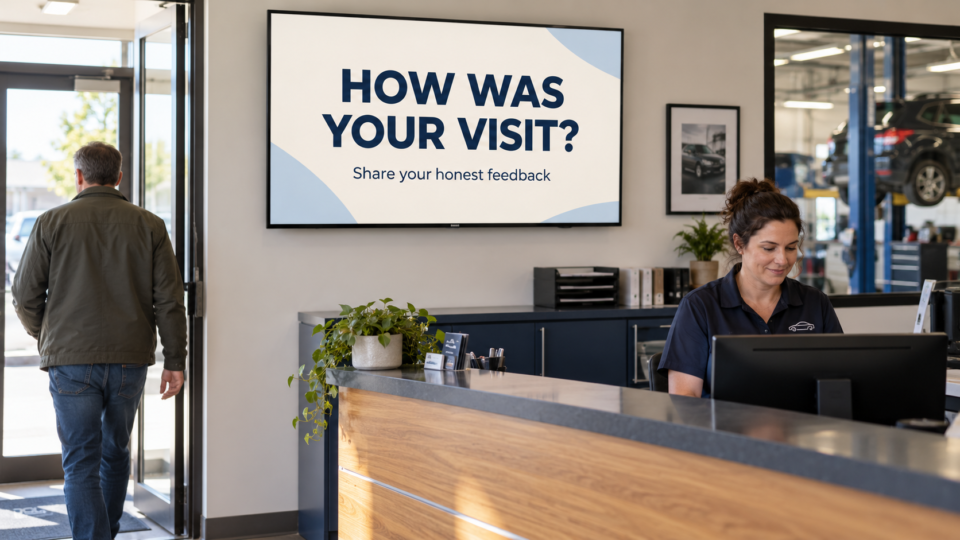
You can update a business TV from your phone by using the screen-management app or browser dashboard connected to its playlist. In Pair and Play, the phone manages the content; a supported player on the TV or other display shows it.
That distinction matters. You do not need to leave your phone beside the television or keep mirroring your personal phone screen. After the display is paired and connected, you manage the messages through your account and check the result on the intended TV.
Use the management app for the phone and the player for the TV
Pair and Play Manager is available for iPhone and Android. It is for managing media and playlists. Pair and Play also has a browser dashboard. Use the official Pair and Play website to reach the current app-store links and confirm the app you are installing.
The TV uses a supported playback option. Google TV is recommended; compatible browser playback and Amazon Fire TV are also supported. Check the current device setup guide for your hardware. Installing the phone manager alone does not connect a TV.
If your display is already paired and working, keep that connection and update its content through the assigned playlist. If it is new, have the owner complete the supported screen-connection process first.
Check the business, location, and active playlist
Before uploading anything, confirm the account context. A name such as “Front Desk” can mean different things across several locations. Identify the actual business, location, and playlist used by the TV you intend to change.
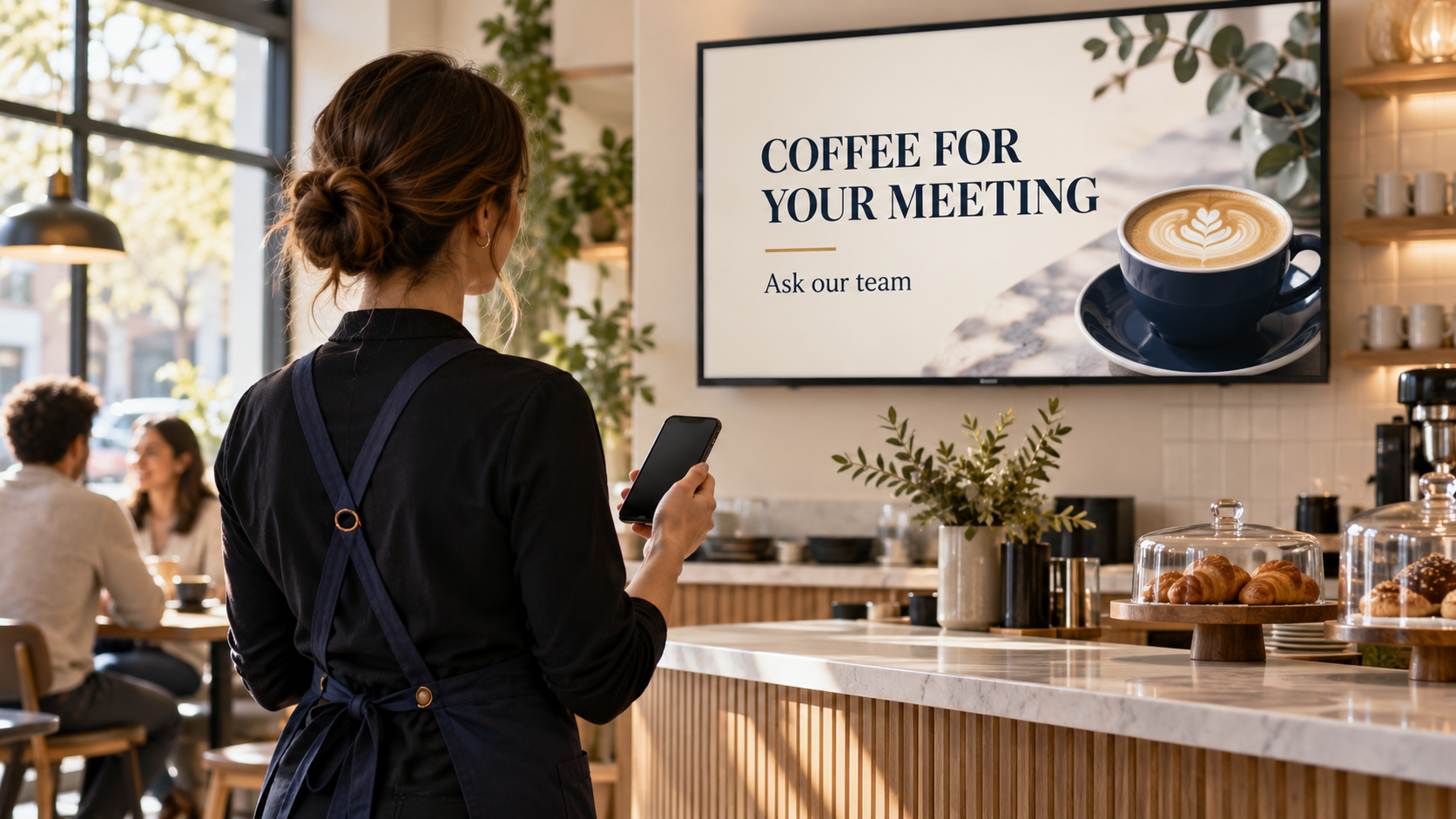
For example, a café may have a counter playlist and a separate seating-area playlist. A message about ordering a meeting coffee service could belong at the counter; a community announcement may belong in the seating area. Uploading a good screen to the wrong active playlist creates an avoidable operational problem.
Add a finished image or video from your phone
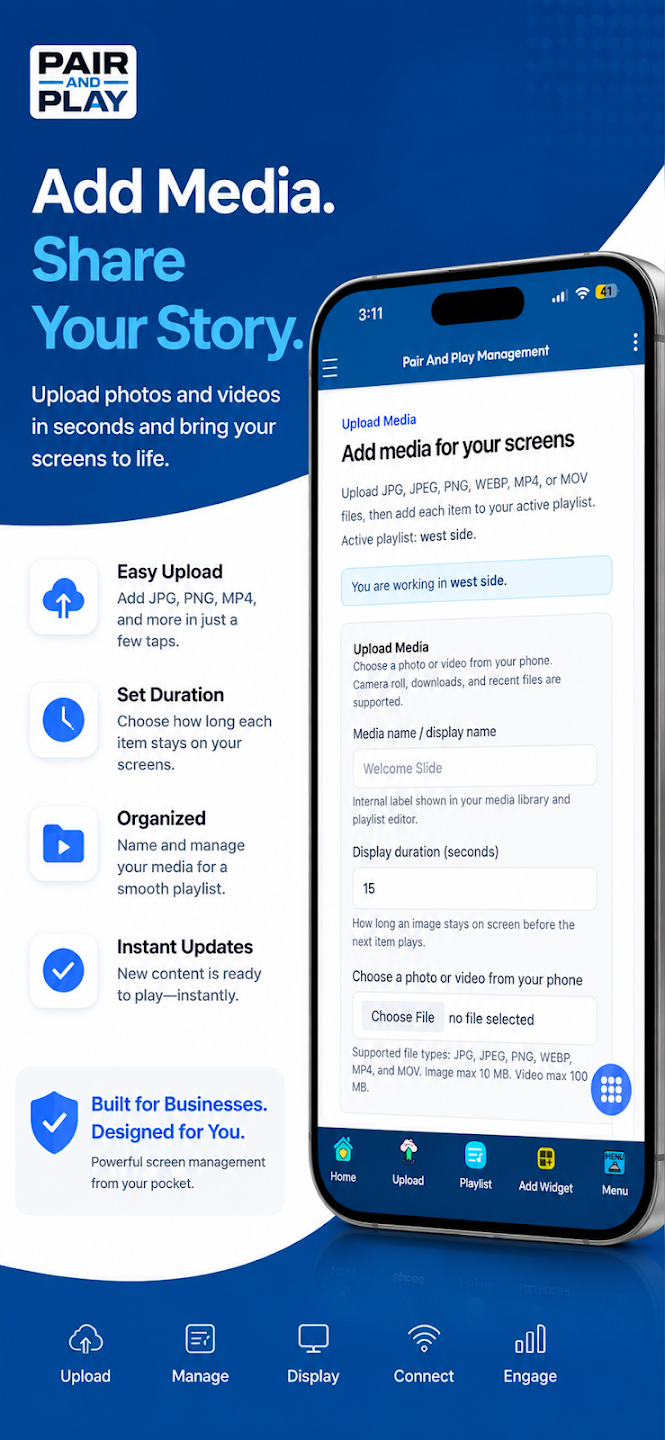
Open the media-upload area in Manager and choose the file from your phone. Use a finished screen that has already been checked for wording, image quality, and business accuracy. Give it a useful internal name so another staff member can recognize it later.
“Meeting coffee — counter — approved” is more useful than a camera-generated filename. Include a date or event name when the content is temporary. An internal media name helps staff organize the library; it is separate from the headline customers see in the design.
The official upload example shows an active playlist, a media name, and a display-duration field. Read the current upload page before confirming: if the action adds content to the active playlist, that selection affects where the new item belongs. Check the supported formats and file limits shown in your current interface.
If the artwork still needs to be created, use your own approved design or Pair and Play’s Screen Maker. A photo, description, logo, or exact wording can start an AI screen; each is optional. The Screen Maker walkthrough covers creation and review separately from this phone-management task.
Review the playlist as customers will encounter it
Open the relevant playlist and check the new item’s position and timing. Read the items immediately before and after it. Remove an older version if the new screen replaces it, so customers do not see conflicting prices, dates, or instructions.
A useful update can be small: replace the sold-out special, add the next event welcome, or move a timely announcement into a more suitable position. You do not need to redesign the whole rotation every time something changes.
Use the current save or publish controls for that workflow, then verify that the playlist remains assigned to the intended display. For deciding what belongs in the rotation, see how to build a better waiting-room playlist.
Confirm the change on the actual TV
Ask someone in the room to watch long enough to see the updated item. Check that it appears on the correct display, is readable from the customer’s position, and does not crop important wording. A successful upload is only one part of that check.
If you are managing remotely, agree on a simple confirmation with the local team: the TV’s name, the expected message, and when they saw it. Avoid assuming an online content-management page proves what is currently playing in the room.
If the TV still shows the old content
- Check context first. Confirm the business, active playlist, and display assignment. A change to a similarly named playlist may be saved correctly but reach another screen.
- Check the content state. Make sure the new item was added where intended and that any necessary save or publish action was completed. Look for an old duplicate that is still in rotation.
- Check the player and connection. Confirm the TV is on the correct input and its supported player is open and connected to the internet. The setup guide explains the current connection options.
- Ask for support with specifics. Provide the affected screen name, playlist, expected message, and the time of the attempt. Share account details through the normal support channel, rather than posting connection codes publicly.
Give staff the access their work needs
Owners can invite screen managers to work with media and playlists while keeping owner administration protected. If a staff member cannot see a device or account control, check their assigned role with the owner instead of sharing the owner’s login.
Choose one ordinary update as your first test: replace a dated message, add an approved image, and confirm it on the TV. Start My 14-Day Screen Test to evaluate that workflow with a real customer message and supported display.