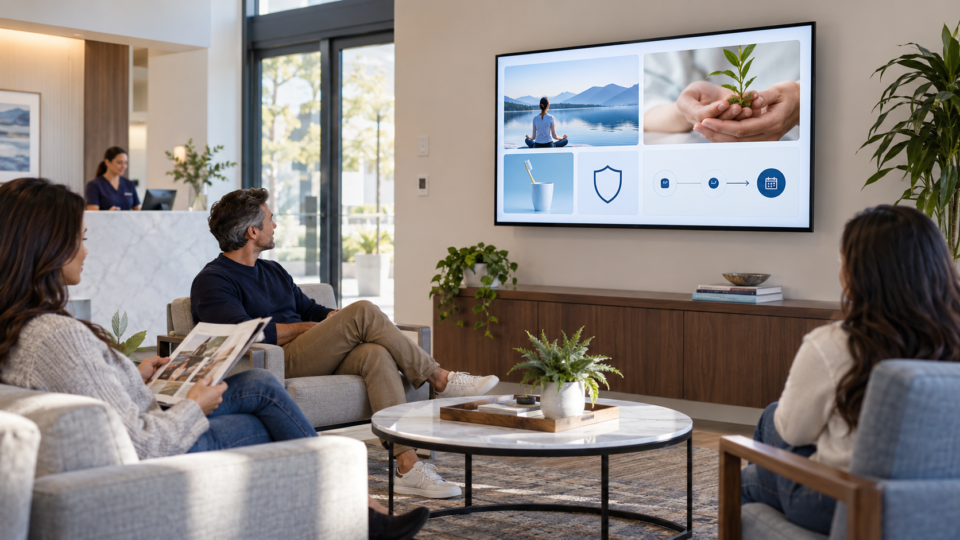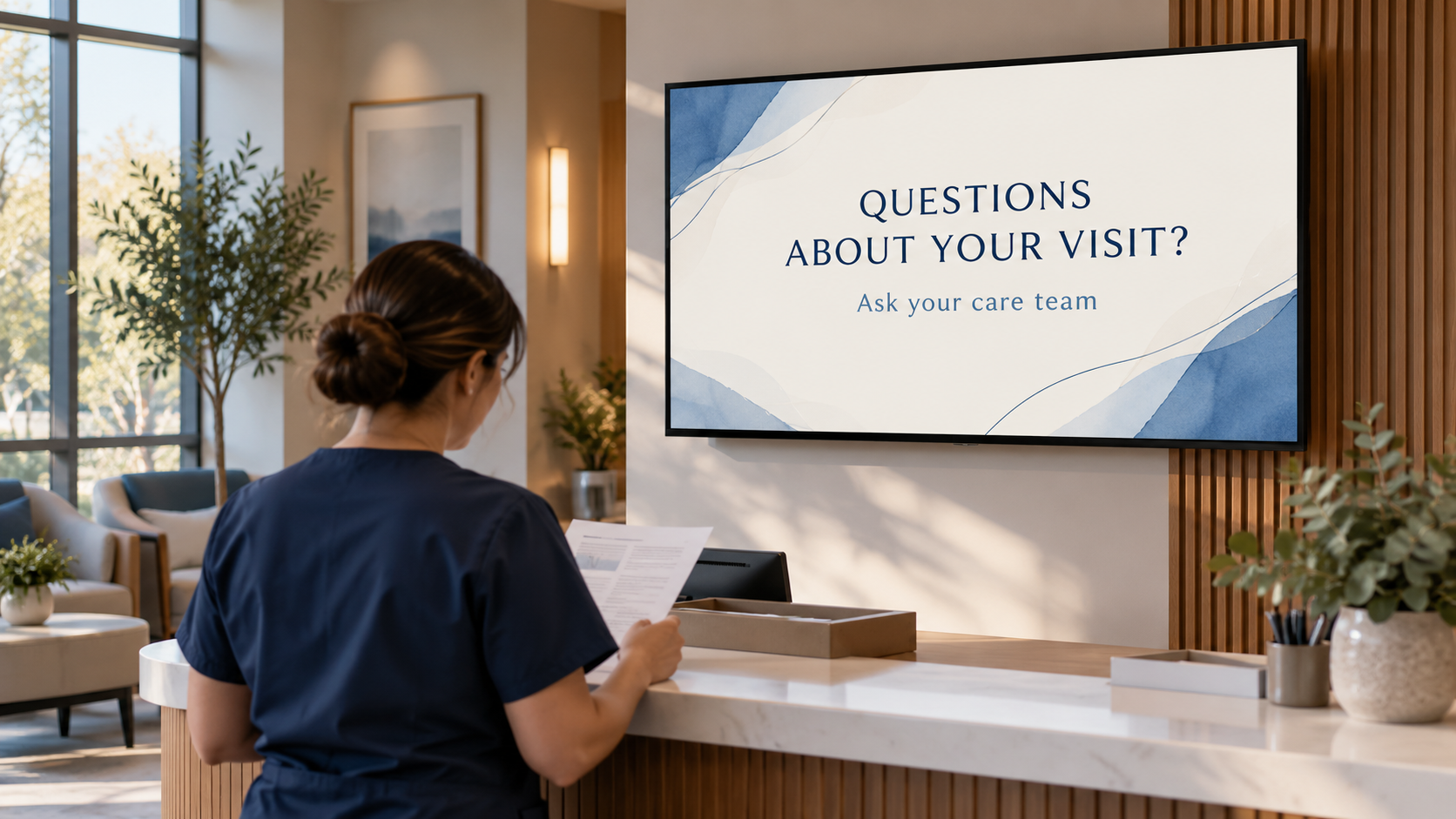
To create patient education screens with AI, start with information your clinic has already approved. Use AI to help present that information clearly, then have the appropriate team member review both the wording and the finished visual before it reaches the waiting room.
The useful question is specific: what should a patient understand or feel comfortable asking before leaving? A short screen can introduce that conversation. It cannot determine what an individual patient needs or replace an explanation from the care team.
Choose one education job
Start with a question your front desk or clinical team hears repeatedly. For example: how do I prepare questions for my visit, where can I find the clinic’s written instructions, or who can explain a service? Choose an issue the screen can introduce without requiring a personal medical history.
A therapy clinic might help caregivers prepare a question about carrying a therapist’s recommendations into everyday routines. A dental practice might invite a discussion about the steps in a consultation. A medical clinic might explain how to get help understanding visit instructions. Each needs wording approved for that practice.
Keep the screen’s job narrow. If the topic needs individualized preparation, risk information, or a treatment decision, use the screen to direct the patient to the relevant professional or approved material.
Gather the facts before generating a design
Ask the person responsible for the topic to supply the approved wording, intended audience, next step, and any conditions that must remain visible. Use the clinic’s current patient materials and relevant authoritative sources to settle the meaning before asking AI to design it.
Record the source and review date outside the screen so staff can trace the message later. For a general visit-information screen, that might be an approved practice handout, a named clinical reviewer, and the date they confirmed the wording.
Use general, approved content for creation. Do not put patient names, charts, appointment details, or identifiable patient stories into a prompt or a public waiting-room design. A general screen can answer a common question without using a real person’s information.
Make the language easy to use
The CDC’s plain-language guidance recommends knowing the audience, putting the main message first, choosing familiar words, and breaking information into manageable parts. For a waiting-room TV, that means a useful headline, a short explanation when needed, and one clear action.
Consider this fictional wording exercise:
- Dense version: “Please direct any outstanding queries regarding your individualized care recommendations to the appropriate clinical personnel.”
- Clearer version: “Questions about your care instructions? Ask your care team before you leave.”
The second version tells a patient what to do. The clinic still needs to check that the wording fits its actual workflow and that someone is available to help. Simple wording should preserve the meaning rather than remove an important qualification.
Create the screen from an approved message
In Pair and Play’s Screen Maker, a description, photo, logo, or exact wording can be a starting point. Each input is optional, and one can be enough. For patient education, exact approved wording is often a useful input because the team has already decided what the message should say.
Create a calm, readable clinic waiting-room screen using this exact wording: “QUESTIONS ABOUT YOUR CARE INSTRUCTIONS?” and “Ask your care team before you leave.” Use a simple visual that supports the message.
This example requests a layout, rather than asking AI to invent clinical advice. If you add a photo, choose an authorized image that does not reveal patient information. If you add a logo, inspect the finished mark for accuracy.
For a two-screen sequence, give each part its own complete purpose. One screen might invite patients to raise a question; another could explain the practice’s approved way to obtain written information. Avoid a message that becomes misleading if someone sees only the second part.
Review the meaning and the visual separately
Have a qualified reviewer check any clinical statement against the approved source. Then inspect the final design, because a changed line break, tiny qualification, incorrect illustration, or added phrase can alter what a patient takes away.
- Clinical meaning: Does every health-related statement remain accurate for the intended audience? Has AI added a benefit, instruction, or certainty the team did not approve?
- Practical action: Does the screen send patients to a real person or resource that is available in this clinic?
- Visual meaning: Could an image imply a treatment outcome, diagnosis, or technique that the wording does not support?
- Access: Can people read it from normal seating? Is the message understandable without audio? Does another language version need qualified review?
Keep the approved version and reviewer’s name with the content record. If a translation is needed, have an appropriately qualified person check the final translated design as well as the source wording.
Use the screen to support a conversation
AHRQ’s Health Literacy Universal Precautions Toolkit includes guidance on clear communication, understandable materials, encouraging questions, and confirming understanding. A waiting-room screen can introduce a topic; the conversation lets the care team address an individual’s questions and check the explanation.
Do not treat a screen appearing in the playlist as proof that patients saw or understood it. Ask staff whether the wording is helpful and whether it creates confusion. Revise the message when the practice changes its process or learns that patients interpret it differently than intended.
Give the message an owner and a review date
Before placing it in a playlist, decide who maintains it and what should trigger a review: a revised handout, a changed service, updated guidance, or a different clinic process. Remove an outdated version rather than leaving two conflicting screens in rotation.
Check the selected business and active playlist before using Approve and add to playlist, then inspect the actual waiting-room TV. The Screen Maker walkthrough shows the creation and approval sequence. For choosing topics, see the separate guide to medical clinic lobby TV ideas.
Start with one approved message your team already explains regularly. Start My 14-Day Screen Test and evaluate whether that message becomes clearer and easier to maintain on your clinic’s screen.