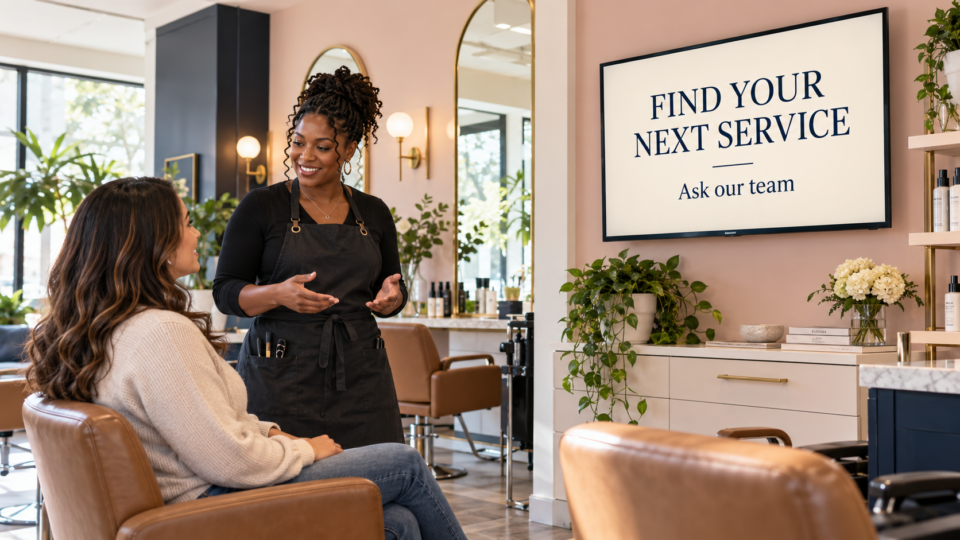
To create digital signage content with AI, start with one thing a customer should understand, give the tool accurate business details and an appropriate image, then review the result before adding it to your TV playlist. The artwork is only part of the job. The message still needs to fit your business, the room, and the next step you want someone to take.
This guide is about screens inside your business: a reception TV, counter display, showroom screen, or waiting-room TV. It is not about buying television advertising or generating a broadcast commercial.
In Pair and Play’s Screen Maker, a photo, description, logo, and exact wording are all optional input types. You can start with just one or combine them. You do not need a long prompt or a complete set of assets to get started.
Start with a customer question, not a design style
Before opening an AI tool, finish this sentence: “A customer standing here should know ______.” Choose something your team can genuinely help with.
- Café: “We can provide coffee for a meeting.”
- Auto repair shop: “You can ask us about a pre-trip vehicle inspection.”
- Event venue: “A private tour can show you how this room works for your event.”
Each example gives the screen a useful job. “Make something impressive for our business” leaves the tool to guess both the offer and the audience. A clear customer question gives you a way to judge the finished screen: would someone in this room understand it?
If you are still deciding what belongs on the TV, start with these digital signage ideas for small businesses. Pick one message to make first.
Collect the facts AI should not invent
Keep business facts separate from visual instructions. “Use a calm cream background” is creative direction. “Orders need one business day’s notice” is a promise to a customer. Only include the second statement when your team has confirmed it.
The notes below help you decide what the screen should communicate. They are not a list of mandatory Screen Maker fields. Include only what the idea needs.
| Input | What to supply | Why it matters |
|---|---|---|
| The offering | The actual product or service name and what is included. | Stops an attractive screen from describing something you do not sell. |
| Exact copy | The approved headline, any necessary detail, and one next step. | Makes the wording something you can check, rather than a new offer to decipher. |
| Visual reference | Your own product photo, authorized logo, or an honest description. | Keeps the screen connected to the business customers are visiting. |
| Limits | Dates, availability, qualifications, or exclusions that must accompany the message. | Prevents a short screen from creating the wrong expectation. |
| Display | Landscape or portrait, where the screen sits, and how far away people will be. | A phone-sized design and a wall-mounted TV have different reading conditions. |
Do not upload customer records or other private information to make a public-facing screen. A healthcare team can start with approved general patient-education material; it does not need an individual patient’s details.
A worked example: help café customers discover meeting coffee
The following is a fictional café example, not a customer result or an actual Pair and Play installation. Suppose the owner has confirmed that the café offers coffee for meetings, but has not approved a price, serving quantity, or order deadline for the screen.
The useful message is simple: someone buying a coffee today may also need coffee for a team meeting. We can make that option visible without inventing a package.
1. Supply the idea and any wording you want to keep
You could start with a short description alone. For this example, we will also supply exact wording so the owner can check the finished message against it:
Description: We offer coffee for team meetings. Make a welcoming café-counter TV screen that helps customers discover this option.
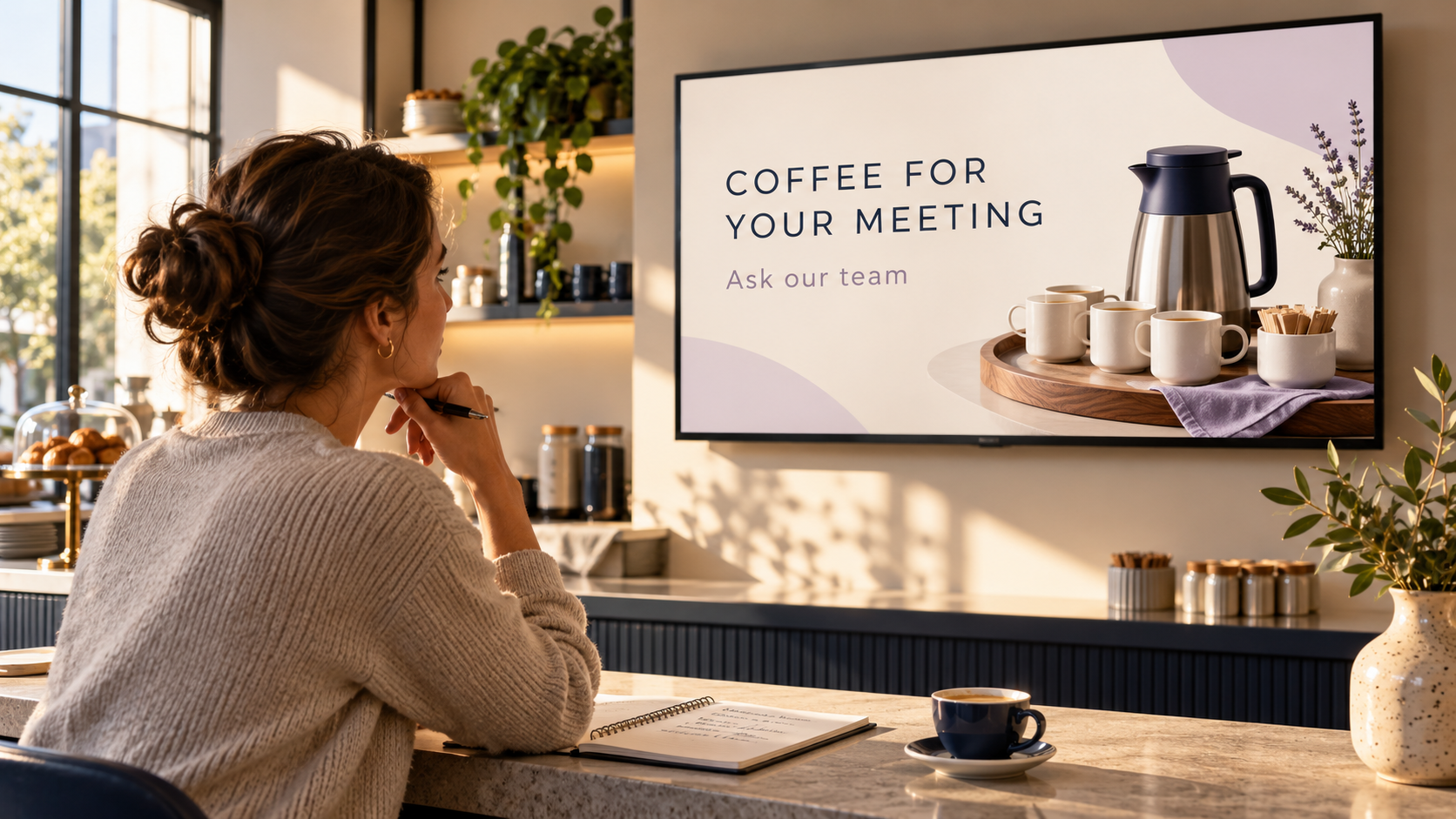
Exact wording: Coffee for your meeting. Ask our team.
A real product photo or logo can be added when useful, but neither is mandatory. Leave out unapproved prices, serving quantities, order deadlines, and delivery promises rather than asking AI to fill them in.
For a real business, attach a clear photo of the actual offering if the chosen tool supports image input. If you do not have one, a restrained text-led layout is safer than presenting an invented product as something customers will receive.
2. Judge the message before the decoration
The headline should be the first thing you notice. The next step should be readable without competing with the photo. A beautiful image that buries “Ask our team” has missed part of the brief.
If the result adds “serves 12” or “ready in 15 minutes,” reject that version unless those details are both correct and approved. Removing an invented promise matters more than choosing between two attractive backgrounds.
3. Request one specific correction
Useful feedback describes the problem and what to preserve: “Keep the photo and headline. Remove the extra sentence, increase the size of ‘Ask our team,’ and leave more space around the text.” “Make it better” gives the tool little direction and makes versions harder to compare.
The featured illustration shows the idea in a conceptual café setting. Its pictured carafe, cups, and setting are illustrative; use your own accurate product imagery when advertising a real offering.
Choose the right kind of image
Use a real photo when appearance is part of the purchase. A restaurant special, retail product, finished venue, or salon result should look like what your business can actually provide. Check that generation has not altered the product, added ingredients, changed a logo, or exaggerated a result.
Use illustration for a concept. An abstract seasonal background, a welcome message, or a simple educational topic may not need product photography. Keep illustrative people and places from being mistaken for your actual team, premises, or customers.
Keep specialist content under qualified review. AI artwork does not validate a medical explanation, financing statement, safety instruction, or regulated-product claim. Have the responsible professional approve the underlying content before you design around it.
Run a human review before anything reaches the TV
Generative AI can produce inaccurate information, including content that sounds confident. The NIST Generative AI Profile describes this risk. For a business screen, treat the output as a draft with an approval step.
- Read every word: check spelling, prices, dates, service names, phone numbers, and any qualifications. Compare them with the approved brief.
- Inspect the visual: check product identity, logo accuracy, people, and any detail a customer could interpret as evidence of your work.
- Test the action: scan any QR code with a real phone and follow it through to the intended page. Do not assume an AI-drawn QR pattern works.
- Test the room: view the screen on the intended TV from the farthest normal customer position. If someone needs to walk closer to read it, simplify the message or enlarge the type.
- Check the destination: confirm the right location, TV, playlist, and dates before publishing. A saved image and a live screen are different states.
When a review fails, correct the specific issue and review again. A polished appearance is not evidence that the details are right.
Add the screen to a useful rotation
One finished screen is a starting point. Place it alongside messages that explain your services, introduce your people, answer a common question, or help customers navigate their visit. The four-part screen mix is a practical way to balance education, promotion, trust, and action.
Give temporary messages a review or removal date. Tell the team what the screen says so an employee can answer the next question. For the café example, that means staff know which meeting-coffee options are available and how to take an inquiry.
After the screen is running, listen for the questions it creates. If customers repeatedly ask whether delivery is included, clarify the message or the follow-up information. A question is useful feedback; it is not, by itself, proof of additional sales.
Where Pair and Play fits
Pair and Play combines customer-facing screen management with a built-in AI Screen Maker, currently labeled Beta. Eligible users can start with an idea and optional photo or logo, then review a privately saved design. Check the selected playlist before using “Approve and add to playlist”: that action adds the design to the chosen playlist. Account and role eligibility apply.
That creation workflow supports a SILENT SALES SCREEN™: a screen that helps customers understand what you offer and what to do next. It does not replace your business knowledge, approval, or a conversation with your team.
To try the approach, choose one real customer question and one accurate message. Start My 14-Day Screen Test, then use the current device setup guide to check your TV or browser playback option. Judge the screen by whether customers can understand and use the message—not just whether the image looks impressive.