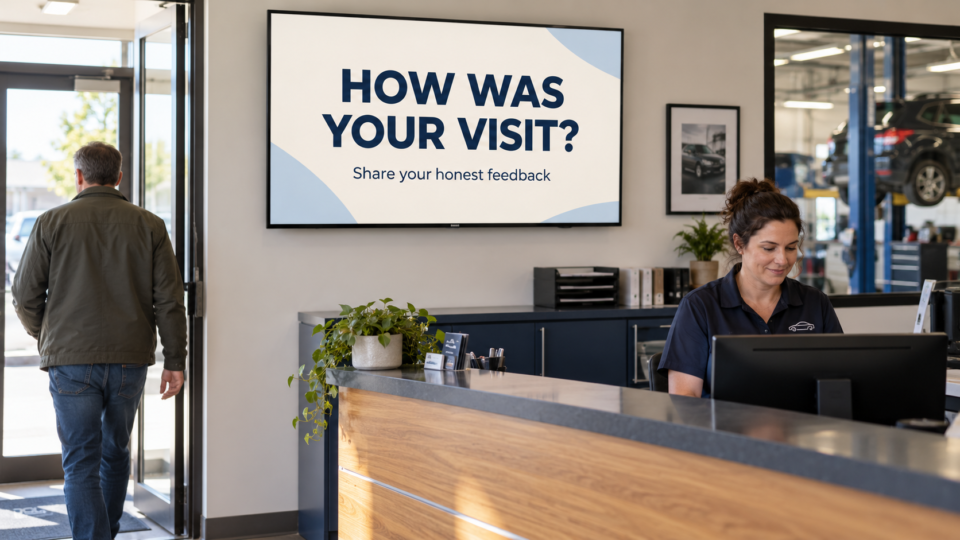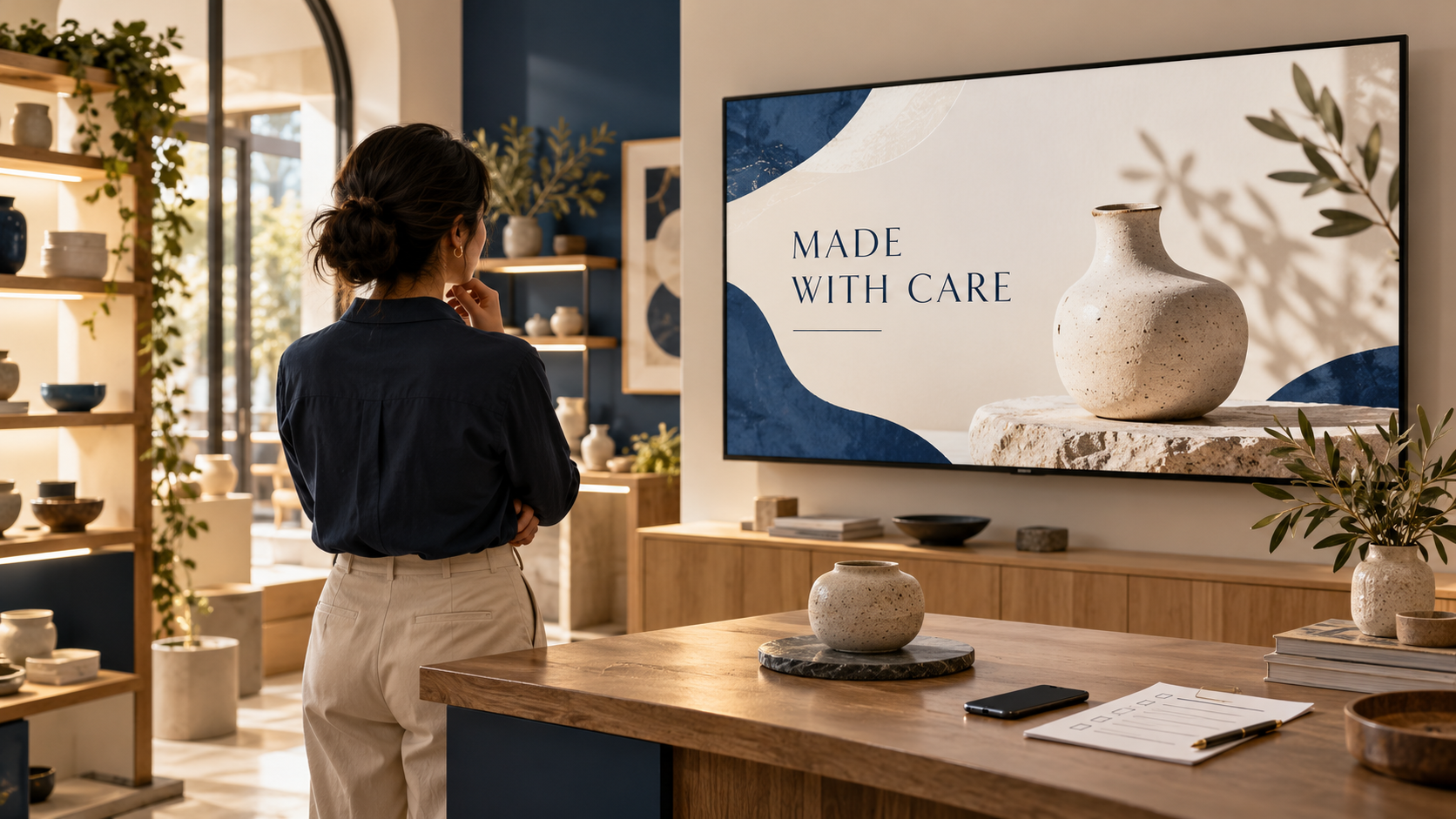
Choose AI digital signage software by testing the complete job: turn a real business idea into a professional screen, review it, put it on the correct TV, and keep it current. The image generator is one part of a system your team needs to operate after the first demonstration.
For a business owner, a useful comparison starts with the customer moment. A clinic may need clear visit information. A venue may need an approved event welcome. A retailer may want customers to discover a product or ask about an option. Bring one of those jobs to the trial.
1. Can you start with the material you actually have?
Try a real photo, a short description, a logo, or approved wording. Check whether the tool lets you start simply and whether it can combine inputs when the idea calls for more detail.
For example, a restaurant owner may have a good dish photo but little time to write a design brief. A venue manager may have only the event names and colors. Those are different starting points, and both should be easy to explain during evaluation.
In Pair and Play’s Screen Maker, those four input types are optional: one can be enough, and they can also be combined. Try the input that matches your normal work rather than preparing an unusually elaborate test.
2. Does the result fit the real business?
Compare the finished screen with the source material. Check the product, logo, wording, and tone. A professional result should make the intended message clear while respecting the details customers will rely on.
Use a concrete test: can a café customer see what is available and how to ask about it? Can a wedding guest read the names from the entrance? Inspect the output on the actual TV as well as on a laptop.
Several signage providers now publish AI capabilities, including Play Digital Signage’s built-in image workflow. Compare the results and operating steps that matter to your business; the presence of an AI feature alone does not answer those questions.
3. Can you review and improve a design before placement?
Ask the provider to show where a generated design is saved, how you request a change, and which action places it into playback. Try a specific revision, such as enlarging the next step or removing an unapproved sentence.
In the current Pair and Play interface, the action Approve and add to playlist identifies a meaningful decision. The selected business and playlist should be clear when you approve. Use the Screen Maker walkthrough to see that sequence.
4. What happens after the design is finished?
Follow the design into the media library and playlist. Reorder it, check its duration, and confirm which TV receives the playlist. Then consider the next routine change: a new offer, a different event, or a corrected service name.
Ask how your existing photos and videos fit into that workflow. A useful content library may include professional artwork you already own, real team images, educational messages, and newly generated designs.
For the message mix itself, this promotion, education, trust, and action framework gives you a practical way to judge whether the rotation serves customers.
5. Will it work on the devices and connections you have?
List the actual TV models or playback devices, their orientation, internet connection, and physical location. Confirm support for that setup before committing to a rollout.
Test recovery after a normal interruption, such as reopening the player or restarting the supported device. Ask what support is available if a screen is offline or a playlist appears on the wrong display. Compatibility should be checked with the provider’s current device guidance.
For Pair and Play, start with the current setup guide, which identifies the supported playback options.
6. Can the right people manage the right work?
Decide who creates content, who approves it, and who handles day-to-day playlist updates. If you manage several locations or client businesses, test a relevant role and workspace instead of assuming every user sees the owner’s controls.
Ask specifically about access to AI creation, media, playlists, display assignments, and account administration. A staff member helping with a lobby message may need a different set of permissions from the person responsible for the subscription.
7. What does the full service cost?
Compare the base subscription, included screens, additional display charges, hardware, content work, support, and any published AI allowances or limits. Ask about the terms that apply to your account rather than inferring unlimited generation from unlimited playlists.
Include your own team’s effort in the decision. Who supplies business facts? Who reviews designs? Who keeps event dates and prices current? Premium value comes from the quality and reliability of that whole process.
Use one trial task to make the decision
| Trial task | Evidence to keep |
|---|---|
| Create one real customer message. | The source material and finished design. |
| Request one meaningful correction. | The revised version and whether the important details remain accurate. |
| Place it on the intended TV. | The playlist, display assignment, and a room check. |
| Update or remove it later. | The actual steps your staff will use during normal operations. |
A small operation that only needs to show a rarely changed file may have a simpler requirement. A business creating frequent messages across several screens should give more weight to content creation, management, roles, and support. Choose for the work you will repeat.
Start My 14-Day Screen Test to evaluate Pair and Play using that real task. Check the current offer and subscription details, then decide whether the finished screens and daily workflow fit your business.