Catering and private event promotion can start with diners who already know your food. Use the restaurant TV to show that a group order, catered occasion, or private meal is available, explain the relevant option, and make it easy to start an inquiry.
Only promote the services you actually provide. A restaurant that handles catering but has no private room should make that distinction clear. A dining space that can sometimes be reserved should not be presented as permanently available.
Connect the service to a recognizable occasion
A diner may be planning an office lunch, family celebration, team dinner, or client gathering. They may not know that your restaurant can help. One clear occasion gives them a reason to ask without interrupting the meal with a long sales presentation.
Choose the occasion that matches your operation. If you specialize in prepared pickup orders, show that. If you have an actual private dining room, use current photographs of it. If a group booking uses part of the main restaurant, describe that accurately instead of implying a separate room.
Use a three-screen discovery sequence
Each screen below has a different job. These are fictional copy directions for adapting to a real restaurant’s services and booking process.
1. Introduce the group occasion
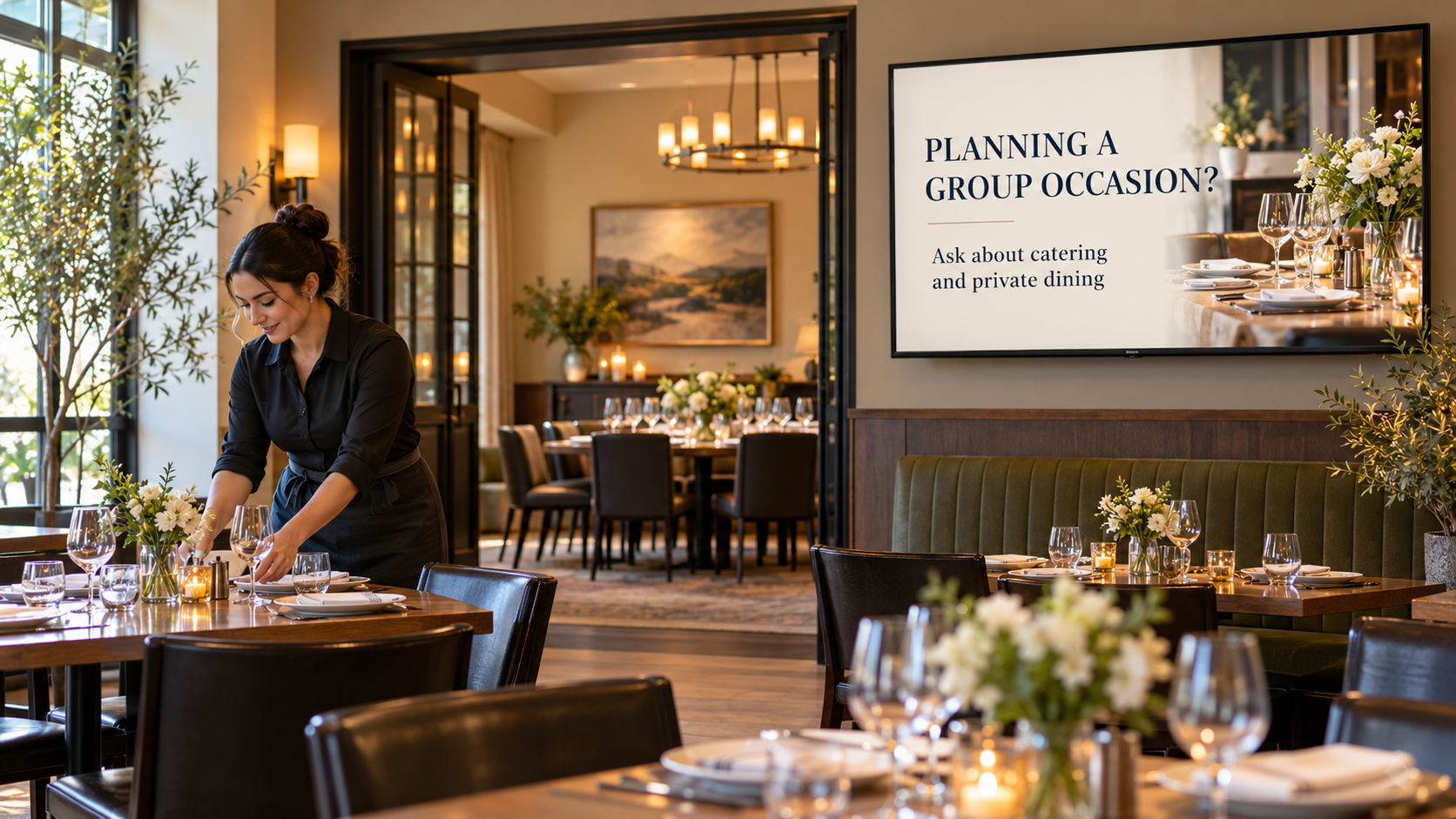
PLANNING A GROUP OCCASION?
Ask about catering and private dining.
This makes the service visible to someone who came for an ordinary meal. Use an authorized photo of a real group setup or catering order that represents what you can deliver. If you offer only one of the two services, use only that service in the wording.
Give the message space. A strong food or room photograph with a clear question can do more useful work than a dense collection of package prices and small print. The staff conversation can establish what kind of occasion the diner has in mind.
2. Explain the option that fits your operation
FOOD FOR YOUR NEXT TEAM MEETING
Ask about our catering options.
For catering, a second screen can introduce the real format: pickup, delivery where offered, or a staffed service if available. Show a representative order and clarify anything the image might imply, such as whether serving equipment is included.
For private dining, use a separate version that explains the actual room or group-booking option. If you mention guest numbers, have the booking manager confirm the approved capacity for that specific arrangement. Do not use a maximum figure from a different room or layout.
The purpose is to help a diner recognize a relevant option. Put the complete menu, inclusions, charges, and conditions in the current information the team provides after an inquiry.
3. Tell the diner how to start
TELL US YOUR OCCASION, DATE, AND GUEST COUNT
Ask our manager about the next step.
This turns interest into a manageable conversation. Have one clear contact route: a named team role, the restaurant’s actual inquiry page, or another process you already maintain. Decide who handles the request when that person is away.
If you use a QR code, send it directly to the intended inquiry page and test it on a phone from the customer’s viewing position. Explain that the page starts an inquiry if availability and pricing still need confirmation. Do not make it look like an automatic booking or guaranteed reservation.
Verify the details behind the invitation
Ask the catering or booking manager to confirm the current service area, order minimums if applicable, lead times, guest capacity, menu options, and any conditions that affect the offer. Confirm how deposits, cancellation terms, and final guest counts are explained in the actual booking process.
The TV does not need to carry every contractual detail, but it should not create an expectation that those details contradict. Avoid a single “from” price unless the surrounding information makes its scope and conditions clear. Use a simpler invitation when the offer needs a tailored quote.
Give one person responsibility for removing a message when a service pauses, an event window closes, or the booking route changes. A holiday-party invitation should not keep playing after the relevant booking period.
Create with real food and real space
Pair and Play’s Screen Maker can start with a photo, description, logo, or exact wording; each is optional. Your own food or room photo is useful here because it can show what the restaurant actually provides. Add approved wording when a service name or next step needs to stay specific.
Review the result for invented rooms, extra equipment, changed portion sizes, or added promises about price and availability. A concept image can help explain a direction, but label it as a concept rather than present it as evidence of your venue.
The restaurant food-photo guide explains how to check a finished design against the original dish. The Screen Maker walkthrough covers revision and approval before adding a screen to the selected playlist.
Place the message where an inquiry makes sense
A waiting or dining-area TV may give guests time to consider a future occasion. A checkout display can provide a final reminder and a simple way to take the information away. Keep the message relevant to the location rather than showing every promotion on every screen.
Brief the team before the first display. They should know what is offered, where the current information lives, and who handles the next step. The screen starts a conversation; the restaurant’s booking and service process completes it.
For balancing this message with other useful content, see restaurant TV ideas beyond the menu. For scan-based actions, see the TV QR-code guide.
Start My 14-Day Screen Test with one genuine group occasion, one accurate service option, and one clear inquiry route. Ask the team whether the screen helps diners discover something useful about your restaurant.