Useful AI digital signage prompts can be ordinary sentences. Tell the tool what you want customers to know, and add specific material only when it helps the design. You do not need to learn a special prompt language to start.
In Pair and Play’s Screen Maker, a photo, description, logo, or exact wording can be enough on its own. All four inputs are optional, and you can combine them. The examples below show how a little context can guide a particular result without turning every screen into a complicated writing exercise.
Start simply, then add the details that matter
“Make a screen about our gift cards” is a reasonable starting description. If the first direction needs to be more specific, say who will see it or what you want them to do. If wording must be exact, provide the approved text rather than asking AI to invent it.
Five details can help when you have them: the audience, one message, verified business facts, a useful visual input, and the next step. They are options, not required fields. A restaurant photo may do much of the work; a clinic’s approved wording may be the most important input.
Six business-specific examples
These are fictional briefs for adapting to your own business. Confirm any service, availability, or process before using a version. The text in quotation marks inside a brief is proposed screen wording, not a testimonial.
1. Café: introduce an overlooked service
Create a café counter screen about our meeting coffee service. Use this coffee photo. Exact wording: “COFFEE FOR YOUR MEETING” and “Ask about ordering ahead.” Keep it warm and easy to read.
The service gives the screen a discovery job. The counter location explains why the next step is a conversation while ordering. The photo should represent what the café actually supplies. Use this direction only if the service exists and staff can explain the ordering process.
Leave out a price or lead-time promise until those details are approved. The product-photo guide shows how one photo can support several distinct messages.
2. Venue: make the welcome personal
Create an elegant wedding welcome screen. Exact wording: “WELCOME TO THE WEDDING OF AVERY & JORDAN.” Use ivory and deep navy, with generous space around the names.
The names and occasion establish the message without needing a photo. The color direction helps set the tone. Avery and Jordan are fictional names for this example; replace them with the couple’s approved wording and check spelling in the final design.
Do not add a date, room name, or event schedule unless supplied and confirmed. See the wedding welcome guide for placement and event-day checks.
3. Clinic: present an approved invitation to ask
Make a calm, readable waiting-room screen with this exact wording: “QUESTIONS ABOUT YOUR CARE INSTRUCTIONS?” and “Ask your care team before you leave.” Use a simple, reassuring visual.
The approved wording keeps the task focused on presenting a clinic message. It does not ask AI to decide on medical instructions or make a treatment claim. The practice must confirm that the invitation fits its workflow and that appropriate staff can answer the questions.
The patient-education workflow explains source checks and qualified review before a clinical screen is used.
4. Retail: direct attention to a real product range
Use this photo of our new collection for a store TV. Exact wording: “SEE WHAT’S NEW” and “Find the collection near the front desk.” Keep the product colors and packaging accurate.
The real photo identifies the products; the location instruction helps a visitor find them. Confirm that the collection is actually in that location and available before approving the design. If the display moves, the screen needs to move with it or be updated.
Avoid adding a bestseller badge, discount, or product benefit that the business did not supply. Check that AI has not changed a label or included an accessory that is sold separately.
5. Veterinary practice: explain how to ask about a visit
Create a veterinary lobby screen using this wording: “PLANNING YOUR PET’S NEXT VISIT?” and “Ask our team about appointment options.” Use a welcoming pet-care visual without medical instructions.
This brief introduces a practice process rather than recommending a care schedule for every animal. The team should verify the appointment wording and visual. If the practice wants a specific preventive-care message, a qualified reviewer should approve the content first.
Choose an image appropriate to the practice’s patients. A generic visual should not imply a procedure or service the clinic does not offer.
6. Auto shop: make questions feel welcome
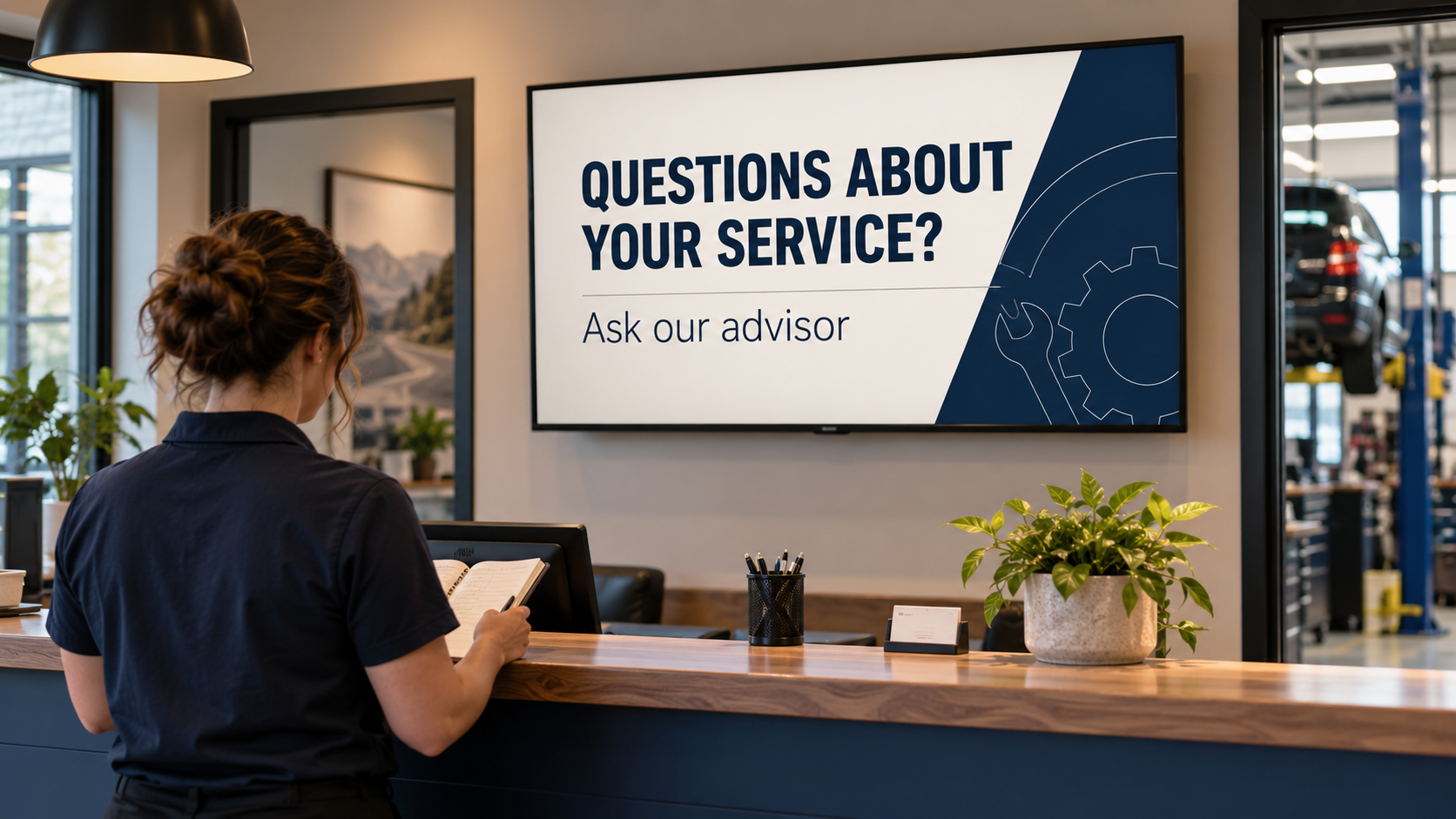
Make a professional auto service waiting-room screen. Exact wording: “QUESTIONS ABOUT YOUR SERVICE?” and “Ask our advisor.” Use a clean ivory and navy layout with a subtle mechanical graphic.
The wording gives customers a clear action without asking AI to diagnose a vehicle or invent a repair recommendation. It suits a shop where an advisor is available to explain the work. The featured image illustrates this direction in a fictional reception area.
If the shop uses a different contact process, change the action to match it. The most useful brief describes the real customer experience, rather than making the screen sound impressive in isolation.
Request one useful revision at a time
After generating, compare the result with your actual inputs. If the design is close, ask for a concrete change: enlarge the next step, remove an added price, keep the original logo intact, or simplify the background behind the headline.
Check the whole revised design again. Correcting one element does not remove the need to verify the remaining wording, product appearance, and business facts. Look at it on the actual TV before treating it as finished.
For the approval and playlist steps, use the Pair and Play Screen Maker walkthrough. Start with one message from your own business, and Start My 14-Day Screen Test to see how simply you can turn it into a useful screen.